
 Upgrade
Put the original in box A
Paste it, click File, or drag a file onto the box. Word, PDF and plain text files all open here, and they're read by your own browser.
Paste two versions of a text, or open two Word or PDF files, and see exactly what changed. Removed words are struck through in red, added words are green, and a paragraph you only moved is marked as a move. It's free, there's no sign-up, and your text stays in your browser.
The first result shows up while you're still pasting.
Paste it, click File, or drag a file onto the box. Word, PDF and plain text files all open here, and they're read by your own browser.
The comparison updates as you type, so there's no button to press. If you put them the wrong way round, Swap flips them.
Each change is coloured and counted, with a similarity score at the top. Jump between changes with Alt + ↓, then copy the report or download it as a text file.
Pick the level that fits what you're checking.
The similarity score follows the level you pick. ABC-1042 against ABC-1043 scores 50% by word, because one of its two words changed. By character it scores 87.5%, because seven of the eight characters match. Both numbers are right. They answer different questions.
Three switches that hide the noise and leave the real edits.
The switches only change what counts as a match. Your text itself is never changed, so what you copy back out is what you put in.
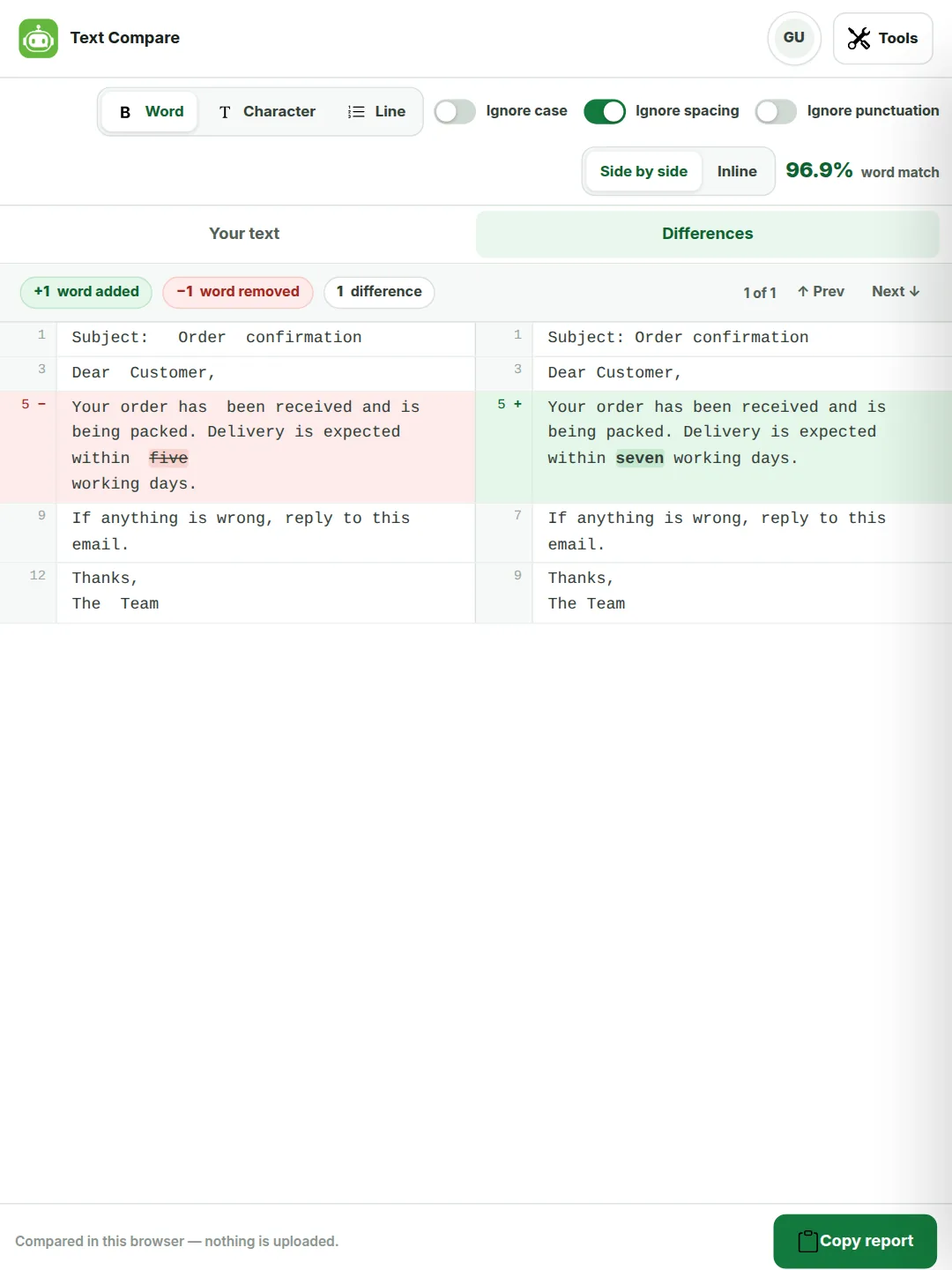
If a comparison shows far more differences than you expected, it's usually one of these.
Most free diff checkers show a move as a deletion plus an addition.
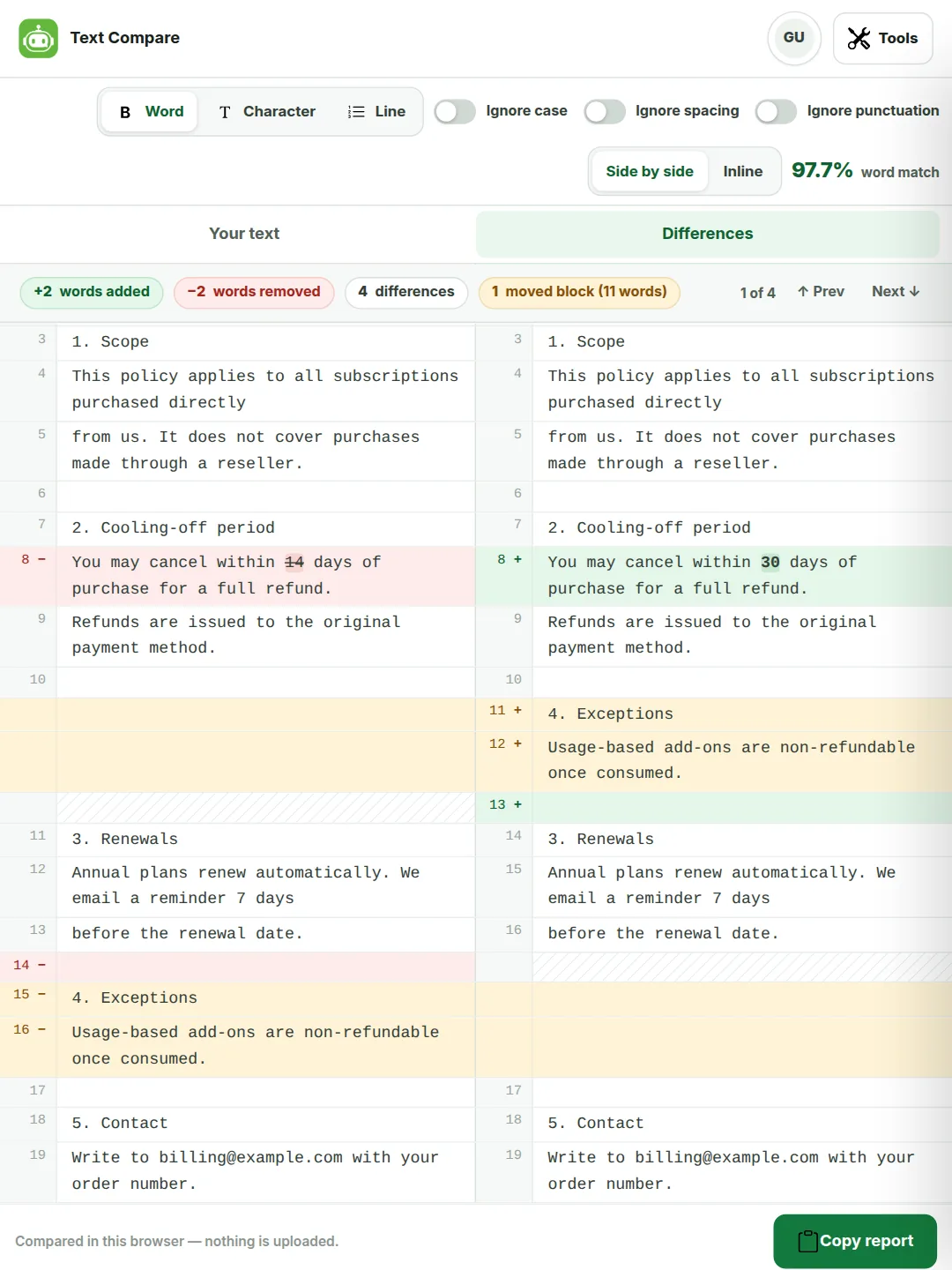
Move a section from one place to another and a simple diff reports it twice: removed here, added there. The similarity score drops as if you rewrote it, even though you didn't change a word.
This tool checks whether a removed block turns up unchanged somewhere else. If it does, both places are marked in amber and counted once, as a moved block. Its words aren't counted as added or removed, and they still count as shared text in the score.
In the refund policy on the right, two sections swapped places and two numbers changed. The result reads 2 words added, 2 removed and 1 moved block of 11 words, with a 97.7% word match.
Open one file in each box. The text is pulled out in your browser and compared like any other text.
Click File and pick a .docx. Each paragraph becomes its own block, so two versions of a report line up neatly. Bold, fonts, comments and tracked changes aren't compared, only the words. Save old .doc files as .docx first.
The text is read page by page, up to 300 pages, and lines are joined back into paragraphs. Turn on Ignore spacing, because two PDFs of the same text often break their lines in different places. A scanned PDF has no text to read until it's been through OCR.
You can compare a Word file against a PDF, or a PDF against text you pasted from an email. That's handy for checking that the signed PDF says the same as the draft you agreed.
Need tracked changes back in Word itself? Word has its own Review > Compare, which also compares formatting. This page is quicker when you only care about the words, or when one version isn't a Word file.
Three things you'd usually need a desktop diff tool for.
Point at a changed row and use the arrows. → copies that line from A into B, and ← copies it from B into A. Use it to accept some edits and reject others, then copy the finished text out of the box. Undo puts back the last one.
Turn on Code colours and keywords, strings, numbers and comments get their own colours, under the red and green change marks. It works for JavaScript, Python, PHP, SQL, JSON, HTML, CSS and most other languages, and switches on by itself when you open a code file.
Click PDF to download the comparison with the score, the counts and every line, removed words in red and added words in green. It's made in your browser, so the text still never leaves your device. Handy for sending to a client or keeping on file.
The kind of change that's easy to miss when you read both versions by eye.
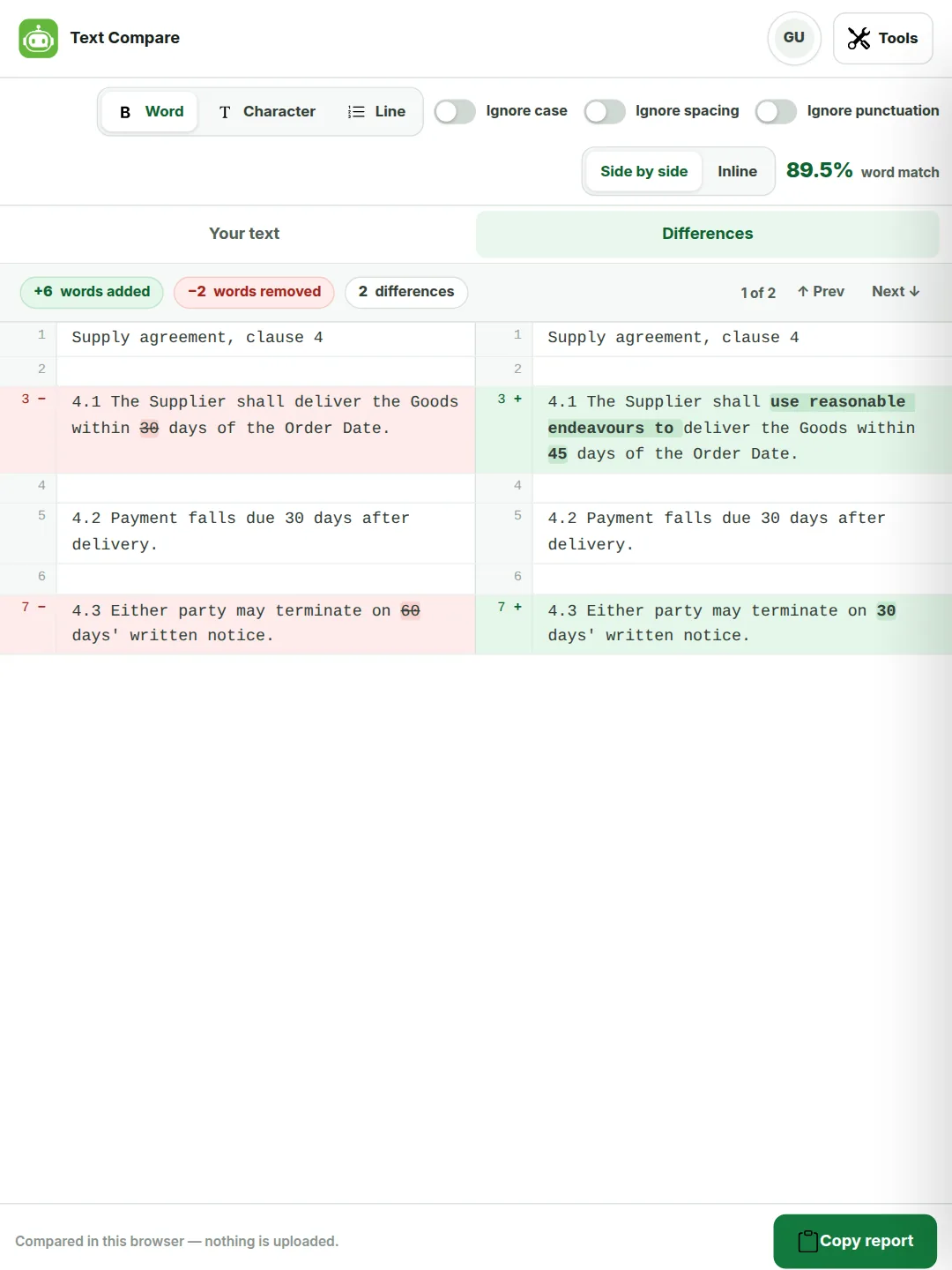
4.1 The Supplier shall deliver the Goods within 30 days of the Order Date.
4.2 Payment falls due 30 days after delivery.
4.3 Either party may terminate on 60 days' written notice.
4.1 The Supplier shall use reasonable endeavours to deliver the Goods within 45 days of the Order Date.
4.2 Payment falls due 30 days after delivery.
4.3 Either party may terminate on 30 days' written notice.
Word view marks 30 to 45, 60 to 30 and the added words use reasonable endeavours to. That last phrase turns a firm promise to deliver into a promise to try. The result: 89.5% word match, 6 words added, 2 removed, 2 differences.
It works on any text. These are the most common jobs.
Find what the other side changed before you sign, and check a new policy says what the summary email claims.
See what an edit really changed, including one from our paraphrasing tool or grammar checker.
A file comes back "lightly edited". Word view shows you in seconds whether that's true.
Two config files, two API responses or two exports of a table. Line view keeps the structure. Character view finds the one changed value.
Check a reviewer's corrections to a translation, or two versions of an .srt file, without scrolling both.
See how far two answers differ, or what a second pass through an AI writer changed.
Sometimes an installed tool is the better choice. Here's when.
| Option | Best when | What it takes | Watch out for |
|---|---|---|---|
| This page | You want an answer now, on any device, for pasted text, Word or PDF files, with merge and a PDF report | Nothing. No account, no limit | Needs the page to load once. Not built for whole code repositories |
| Notepad++ with ComparePlus | You're on Windows, work with saved files all day, and need it fully offline | Installing a plugin, Windows only | Compares saved files, so pasted text has to be saved first |
| VS Code (Compare Active Editor With) | The files are already open in a project | A code editor | A lot of tool for two paragraphs of an email |
The diff command | You're scripting it or comparing many files at once | A terminal | Line-based. For word-level output you need wdiff or git diff --word-diff |
| Microsoft Word Review > Compare | Both versions are .docx and you want tracked changes in Word | Microsoft Word | Compares formatting too, which can bury the wording changes |
The similarity score turns "quite a lot changed" into a number. Read it for what it is.

Paste the original into box A and the changed version into box B. The comparison runs as you type. Removed words are struck through in red, added words are highlighted in green, and each changed line number carries a minus or a plus, so you can still read it if the colours look alike to you.
Yes. There is no account, no sign-in and no daily limit. The comparison is plain arithmetic rather than AI, so it costs us nothing to run. It's free on every plan on our pricing page, including as a guest.
A diff checker takes two versions of a text and shows what changed between them: what was added, what was removed and what stayed the same. "Diff" is short for difference. This page is a diff checker for writing, documents and code.
Click File on box A and pick the first .docx, then do the same on box B with the second one. The text is read in your browser and compared word by word. Formatting such as bold, fonts and tracked changes isn't compared, only the words. Old .doc files need saving as .docx first.
Yes, as long as the PDF has real text in it. Open one PDF in each box and the text is pulled out page by page and compared. A scanned PDF is just a picture of text, so there is nothing to compare until it has been run through OCR. Turn on Ignore spacing for PDFs, because line breaks often fall in different places.
Each box compares up to 400,000 characters, which is roughly 60,000 words. Text files can be up to 4 MB and Word or PDF files up to 25 MB. Anything past 400,000 characters is left out, and the page tells you when that happens.
No. The comparison runs in your browser on your own device. Opening a Word or PDF file loads a small file reader from our site the first time you use it, and that's all.
Once the page has loaded, pasted text keeps comparing even if your connection drops, because nothing is sent anywhere. Opening a Word or PDF file needs the reader to load once, so do that while you're online.
Usually because of a character you can't see. Zero-width spaces, word joiners and byte order marks often come along when text is copied from web pages or PDFs. Inside a change they are shown as a small labelled tag, so you can tell what it is. Spaces and tabs count too, unless you turn on Ignore spacing.
The share of words the two texts have in common, or characters or lines if you compare by those instead. A moved paragraph still counts as shared. It's a measure of overlap between your two texts and nothing more. It isn't a plagiarism score.
No. What you paste or open is compared on your own device and is gone when you close the tab. Nothing is uploaded or logged. Our privacy policy explains how the rest of the site handles text.
Yes, by default. "Hello" and "hello" count as different words. Turn on Ignore case and they match. The text you see is never changed, only what counts as a match.
Side by side puts the original on the left and the new version on the right, lined up row by row. Inline puts everything in one column and shows each changed line twice, removed first and added second. Side by side is easier for long documents. Inline is easier on a narrow window. On a phone you always get one column.
Paste both texts and read the similarity percentage at the top. It shows how much of the two texts is the same, by word, character or line. 100% means they're identical. Below that, the counts tell you how many words were added, removed and moved.
No. The comparison is a fixed method, so the same two texts always give the same result and nothing is sent to an AI model. It works well for comparing two AI answers, or an AI rewrite with your original. If you want to know whether text was written by AI, that's a different question for our AI detector.
Not in one view. It compares two texts at a time. To check three versions, compare version 1 with version 2, then version 2 with version 3.
Yes, as a file. Click PDF for a report with the changes coloured in, or Download for a plain-text report with every removed line marked with a minus and every added line with a plus. There's no share link, because nothing is stored on a server.
Yes. Point at a changed row and use the arrows between the two sides. The right arrow copies that line from box A into box B, and the left arrow copies it from B into A. Undo puts it back. Merging works line by line, so it's switched off while Ignore spacing compares whole paragraphs.
Yes. Click PDF and a report downloads with the similarity score, the counts, and every line, with removed words in red and added words in green. It's made in your browser. For Urdu, Arabic, Hindi, Chinese and other scripts the PDF writer can't draw, your browser's print window opens instead, and you choose Save as PDF.
Install the ComparePlus plugin from Plugins, then Plugins Admin. Open both files, then choose Plugins, ComparePlus, Compare. It works offline but only on Windows. If you don't want to install anything, drop the two files onto this page instead.
Yes. Copy one column into box A and the other into box B, then pick Line. Each cell becomes a line, so you'll see which values were added, removed or changed. Character view helps when the change is a single digit.
Yes. Pick Line for code and data, because it keeps the structure clear, and turn on Code colours to colour keywords, strings, numbers and comments. Pick Character to find a single changed digit in an ID or a missing comma in a CSV row.
Yes. On a phone the two boxes stack, and the tabs at the top switch between your text and the differences. The Example button under box A loads a sample so you can see how it works.
More free tools for checking and editing your writing.
Saved work lives in your drafts, and what each plan includes is on the pricing page. Text Compare needs neither. It's free on every plan, even without an account.