
You've got a 1,500-word limit and a deadline. You need the number, now. Google Docs hides its word count in a menu, but there are four quick ways to get it, plus a live counter that most people don't know exists.
How do you check word count on Google Docs?
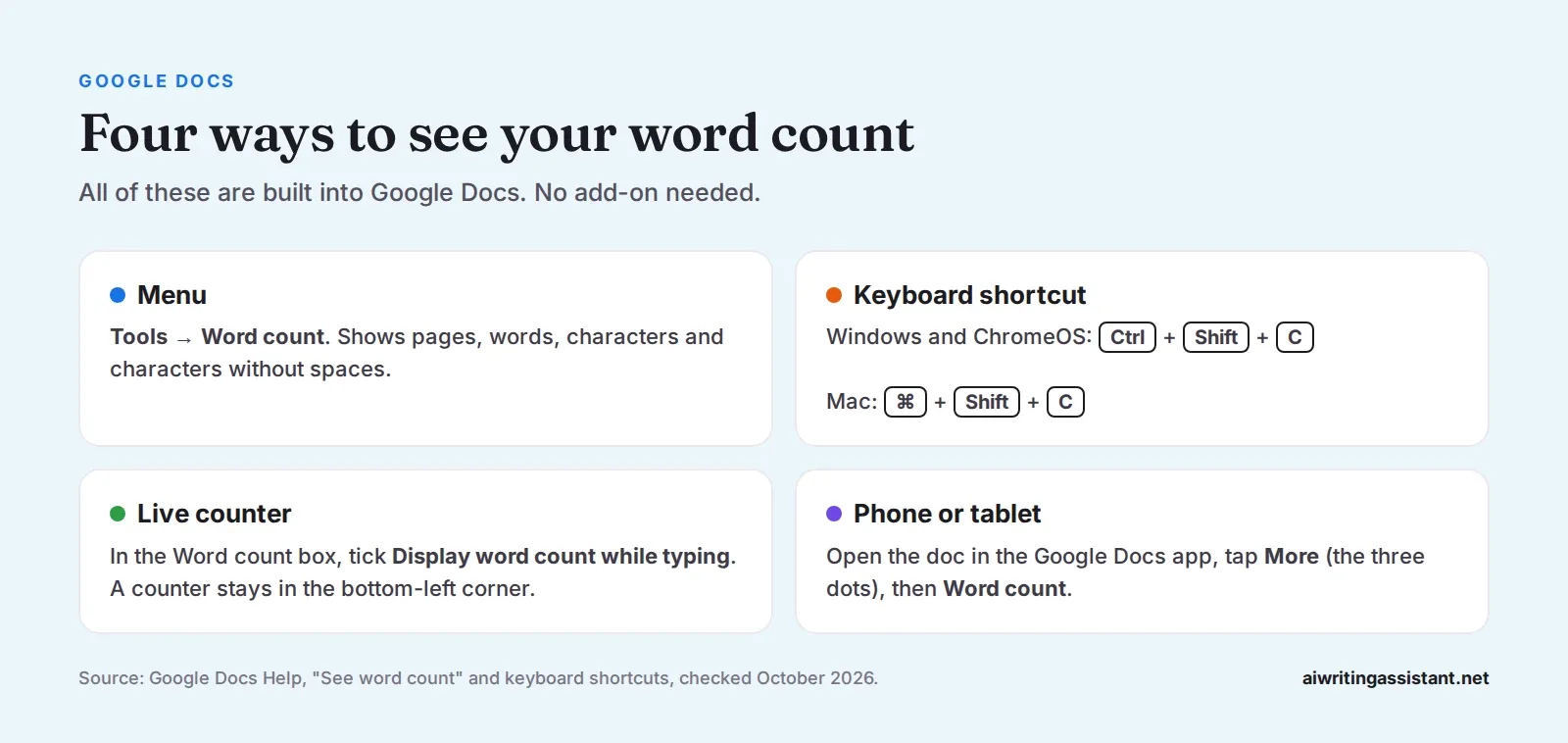
On a computer, open your document and click Tools, then Word count, or press Ctrl + Shift + C on Windows and ChromeOS (Cmd + Shift + C on a Mac). A box shows the number of pages, words, characters and characters without spaces. To keep a running total on screen, tick Display word count while typing. On the Google Docs app for Android or iPhone, tap More (the three dots), then Word count.
Step by step on a computer
- Open your document in Google Docs.
- Click Tools in the top menu.
- Click Word count.
- Read the total, then click Done to close the box.
According to the Google Docs Help page, "Unless you select a section of the document, word count applies to everything except headers, footers, and footnotes."
How to show word count while typing
Open the Word count box, tick Display word count while typing, and click OK. A small counter appears in the bottom-left corner and updates as you write. Click it to switch between pages, words, characters and characters without spaces. To hide it again, click the counter and choose Hide word count.
Google Docs word count shortcut
Google lists the shortcut in its keyboard shortcut guide.
| Device | Shortcut |
|---|---|
| Windows | Ctrl + Shift + C |
| ChromeOS (Chromebook) | Ctrl + Shift + C |
| Mac | Cmd (⌘) + Shift + C |
How to check word count on the Google Docs app
The steps are the same on Android, iPhone and iPad.
- Open the document in the Google Docs app.
- Tap More (the three dots in the top-right corner).
- Tap Word count.
You'll see words, characters and characters excluding spaces. Headers, footers and footnotes are left out, just like on a computer.
Word count in Microsoft Word and Apple Pages
- Microsoft Word: the word count is in the status bar at the bottom of the window. Microsoft says that if you select text, it shows "the word count for that selection and for the entire document." For more detail, go to Review > Word Count, where you can choose whether to include text boxes, footnotes and endnotes.
- Apple Pages (Mac): click the View button in the toolbar, then choose Show Word Count, as the Apple Support guide explains. Select text to count only that part.
- Google Sheets and Slides: they don't have a word count tool. Paste the text into a doc or a word counter instead.
Why Google Docs and Word give different counts
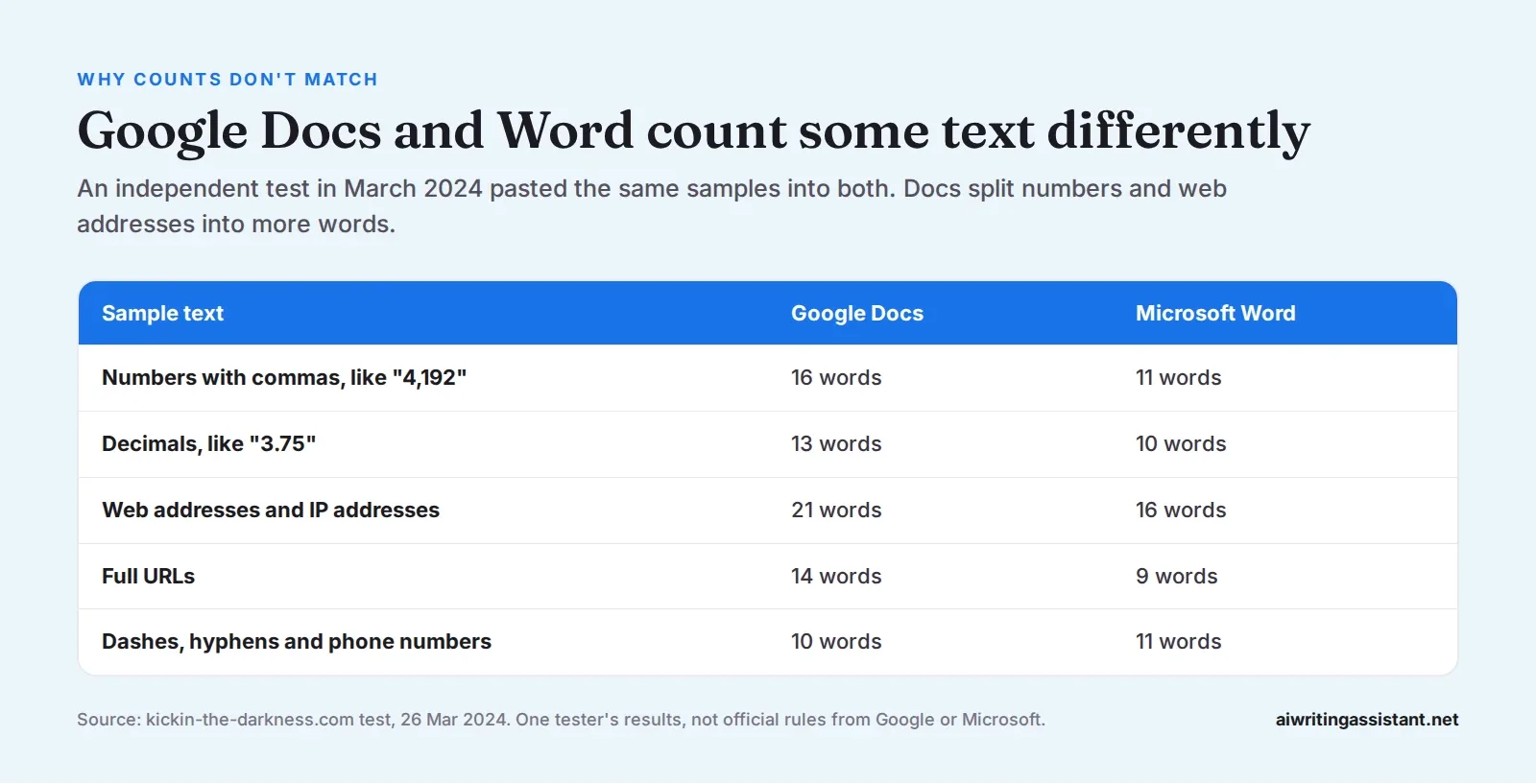
If you write in Docs and your teacher checks in Word, the totals may not match exactly. There's no single official rule for what counts as a word, and each program decides differently for things like numbers, links and dashes.
One independent test from March 2024 pasted the same samples into both programs. Google Docs counted more "words" in text full of numbers and web addresses, because it split them at commas and dots. For ordinary sentences the totals were close.
Two more reasons your count can be off. Docs leaves out footnotes, which some teachers include. And your word limit may or may not include the title, references and headings. When it matters, ask which count your teacher or publisher uses.
Frequently asked questions
How do I check word count on Google Docs?
Click Tools, then Word count, or press Ctrl + Shift + C (Cmd + Shift + C on a Mac).
What is the shortcut for word count in Google Docs?
Ctrl + Shift + C on Windows and ChromeOS, and Cmd + Shift + C on a Mac.
How do I keep the word count on screen in Google Docs?
Open Tools > Word count, tick "Display word count while typing" and click OK. A live counter appears in the bottom-left corner.
How do I check word count on the Google Docs app?
Open the document, tap More (the three dots), then tap Word count.
Does Google Docs word count include footnotes?
No. Unless you select them, Google Docs leaves out headers, footers and footnotes.
Why is my Google Docs word count different from Word?
The programs count some things differently, especially numbers, web addresses and dashes, and Word can include footnotes and text boxes. For ordinary prose the totals are usually very close.
Can I see the word count of just one paragraph?
Yes. Highlight the text, then open Tools > Word count or press the shortcut. Docs counts only what you selected.
 Grammar Checker
 Paraphraser
 Summarizer
 AI Writer
 AI Humanizer
 Text Compare